Blog
How to Install a Pokémon Mod on TCG Card Shop Simulator

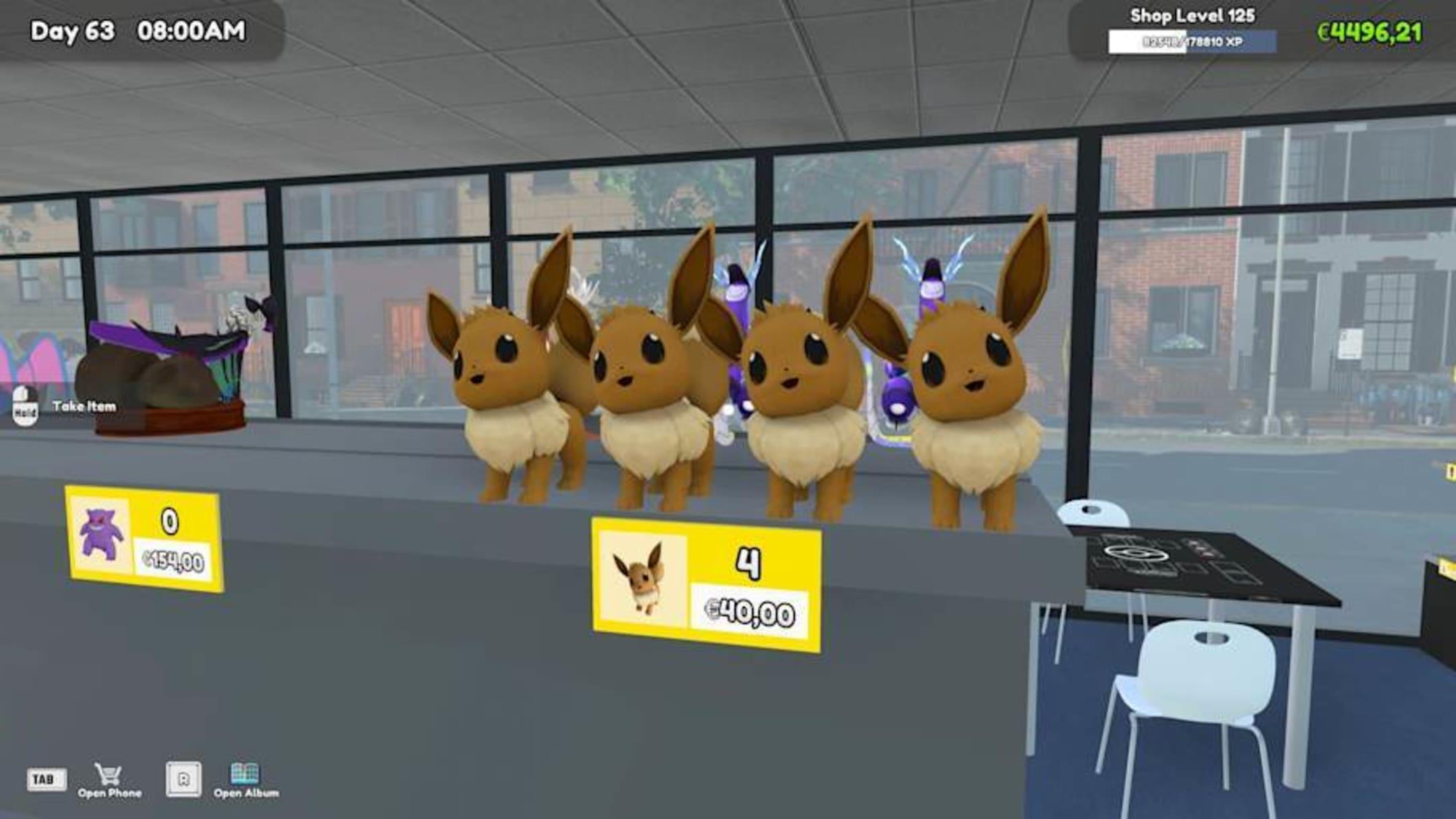
Want to transform TCG Card Shop Simulator into a Pokémon-inspired card shop? Installing a Pokémon mod can add Pokémon-themed cards, artwork, expansions, and other custom content to your game. The exact installation process depends on the mod you’re using, so always read its current requirements before copying files.
What You Need Before Installing
Most TCG Card Shop Simulator mods use BepInEx, a mod loader that allows plugins to run with the game. Some Pokémon card mods also require additional tools such as TextureReplacer or a card-expansion framework. Current mod documentation lists these dependencies for certain Pokémon and Yu-Gi-Oh. overhaul packages.
You should also have a legitimate Steam installation of TCG Card Shop Simulator and download mods from reputable modding platforms.
Step 1: Install BepInEx
Start by installing the BepInEx version required by your chosen mod. Extract the BepInEx files into the game’s main installation directory—the folder containing the game’s executable.
Launch the game once after installing BepInEx. A successful setup should generate the required BepInEx folders and configuration files. Mod documentation recommends running the game before adding additional plugins.
Step 2: Install Required Dependencies
Next, check the Pokémon mod’s requirements. Depending on the project, you may need TextureReplacer, Add New Cards, ArtExpander, or another supporting plugin.
Don’t assume older tutorials are still accurate. Some community guides and older Pokémon mods have been superseded by newer projects, and current mod pages may have different installation orders.
Step 3: Install the Pokémon Mod
Download the Pokémon mod from its current project page and follow the developer’s folder instructions.
For BepInEx plugins, files commonly belong inside:
TCG Card Shop Simulator/BepInEx/plugins
However, some larger overhaul mods use files that must be placed in the main game directory instead. Follow the individual mod’s installation instructions rather than moving every file into the plugins folder.
Step 4: Launch and Test
Start the game and allow extra time for the first modded launch. Check whether the Pokémon cards, textures, packs, or other custom content appear correctly.
If the game fails to load, check the mod’s required dependencies and make sure you’re using versions compatible with your current game version.
Troubleshooting Pokémon Mods
Common problems include missing dependencies, incorrect folder locations, outdated mods, conflicting plugins, or mixing installation instructions from different versions.
The safest approach is to use the latest documentation from the specific mod author and install only the dependencies they currently list. Community reports from 2026 also indicate that newer Pokémon mods have changed their requirements compared with older tutorials.
Final Thoughts
Installing a Pokémon mod for TCG Card Shop Simulator can give your virtual shop a completely different look and feel. The key is getting the mod loader, dependencies, textures, and card-expansion files installed in the correct locations.
Because mods are frequently updated, always check the current project page before following an older TCG Card Shop Simulator Pokémon mod installation guide. That simple step can save you from compatibility problems and unnecessary reinstalls.